MC18 Scanners
May 2024
Introduction
I was asked to repurpose some MC18 barcode scanners for ISBN scanning, whilst I cannot disclose too much regarding the specific application they were used for or details surrounding it, I have compiled this post on how I was able to reset them and sideload apps.
MC18 Barcode Scanners
A while back, Zebra MC18 barcode scanners, commonly used at super markets were being cleared out of a large popular brand in favour for the upgraded, PS20 units, as a result, many of them appeared on eBay.
Charging
Pages 201 and 202 of the product reference guide for the Zebra MC18 scanners contains the pinouts of the scanner’s connectors.:
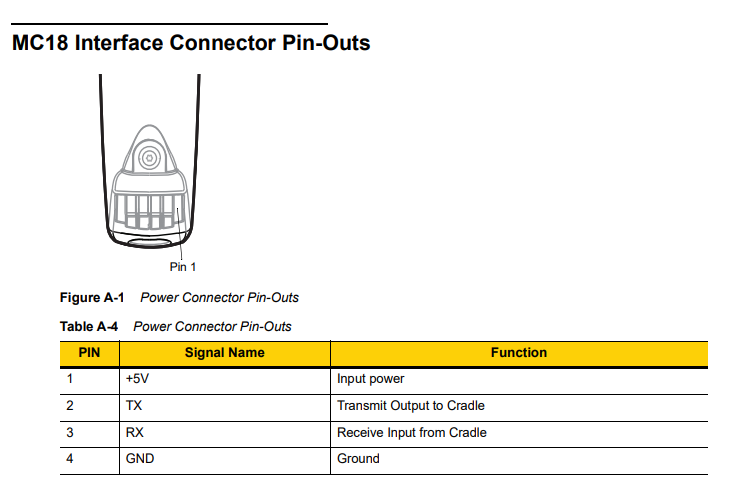
I was able to charge the scanners by applying 5V to the appropriate pins, unfortunately, they charge incredibly slowly (under 1W) iirc.
The scanners do support fast charging but it seems this is only supported when plugged into a so-called “cradle” which communicates over UART.
Interestingly, once Android has started, charging picks up to around 1W.
Android
The scanners seemed to still have the [large retail brand] software on them, as such this needed to be removed.
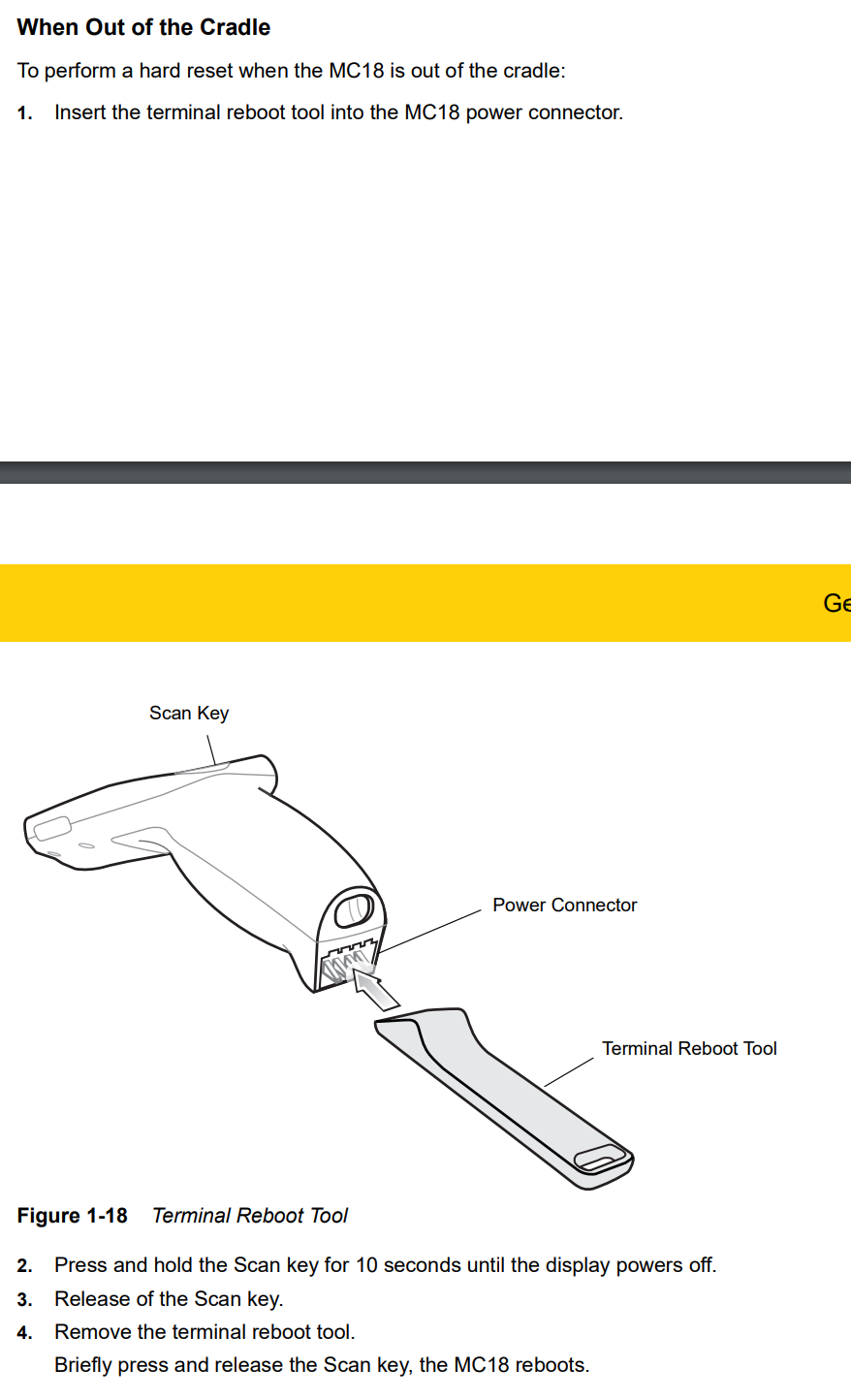
This could be done by flashing a factory reset image via
adb sideload.Unfortunately entering the bootloader in order to do this requires a proprietary tool known as a
terminal reboot tool.Luckily, this tool just shorts the TX and RX pins on the power connector (pinout above). This was easy to replicate with a wire and allowed me to enter the bootloader:
Android system recovery <3e>
02-09-02-L-V0-M1
RecoveryID: MC18 02-10-03-V0-M1
Touch anywhere in screen to move highlight:
Scan button to select.
reboot system now
apply update from On Device Storage
apply update from ADB
USB
On page 202 of the product reference guide, the USB pinout of the MC18 is depicted as such:
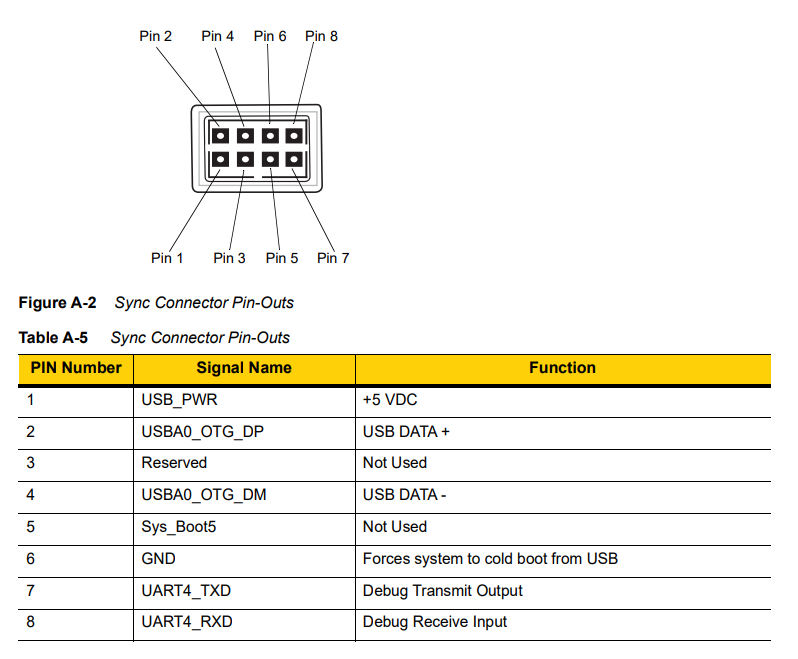
This can be found after removing the battery cover (secured by 2 T8 torx bolts)
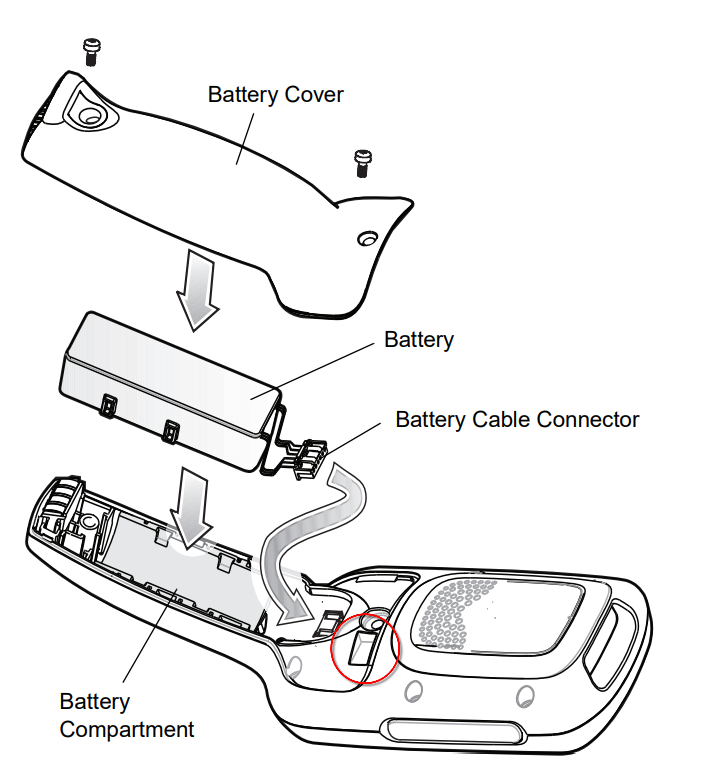
(the USB connector is shown in red)
Once connected, it’s essentially just like any other Android device.
Resetting
To reset my Zebra MC18 I used the full image files from Zebra’s site.
It is important to note that some of the required reset files may be restricted and require the serial number of a barcode scanner currently “in use” (as in, part of an active installation).
Side-Loading Apps
This part is fairly self-explanatory, it’s the same as any other Android device, simply enable developer mode, plug it in and use ADB to sideload APKs.
Developing
To develop for Zebra devices you need the EMDK, the last version supported for the MC18 was 6.9
From there, with the tutorials available it’s fairly trivial to understand how the EMDK works.